
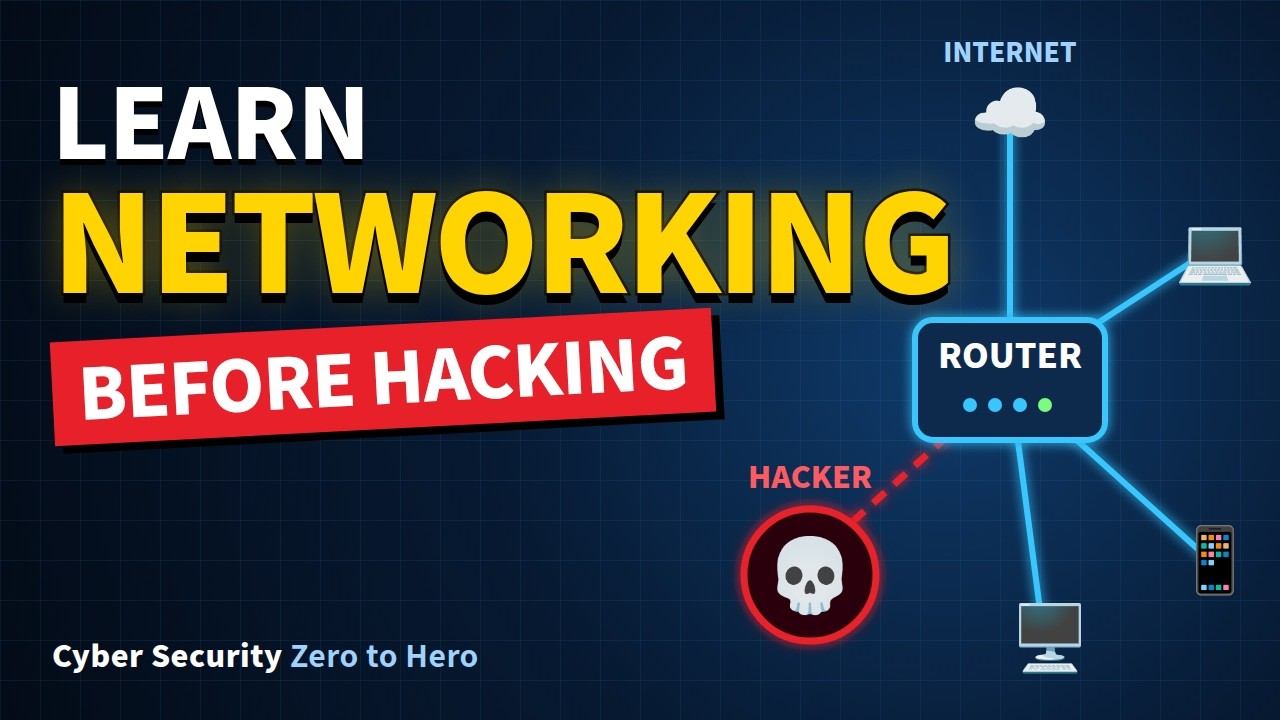
Ethical Hacking Series, Part 6. The first five parts were about Linux, the system you attack from and usually the system you attack. This part starts on the other half of the job: networks. Every attack and every defence travels over one, so you need to know how devices actually find and talk to each other before scanning, sniffing or firewalls make any sense.
We’ll cover the types of networks, how they’re laid out, what hubs, switches, routers and modems really do, and what a MAC address is, ending with a hands-on check of two devices on the same Wi-Fi.
What a network actually is
A network is simply devices connected so they can share data and resources. Think about what happens when you send a WhatsApp message. Your phone sends it over Wi-Fi to your home router, the router passes it to your ISP, the ISP routes it across the internet to WhatsApp’s servers, and they deliver it to your friend’s phone through their ISP and network. That one message crosses several different networks, each built from the pieces described below.
Types of networks, by size
- PAN (Personal Area Network): the few metres around you, such as Bluetooth earbuds, a smartwatch paired with your phone or a wireless keyboard.
- LAN (Local Area Network): a home, school or office. Your home Wi-Fi is a LAN.
- MAN (Metropolitan Area Network): a city, for example a company connecting several branch offices across Hyderabad, or a city-wide network run by an ISP.
- WAN (Wide Area Network): countries and continents. The internet is the largest WAN there is.
For security work, the LAN is where most of the action is. Once an attacker gets onto a LAN, whether by guessing the Wi-Fi password, plugging into an office socket or compromising one laptop, they can usually see and reach far more than they could from outside.
Network topologies
Topology is how devices are physically or logically arranged.
Bus. Every device hangs off one shared backbone cable. It’s cheap, but every device shares the same cable, so traffic collides as the network grows, and if the backbone breaks, everything stops. You’ll mostly see it in textbooks now.
Star. Every device connects to a central switch (or, in older networks, a hub). This is how almost every home and office network works today. It’s easy to add devices and a broken cable only affects one of them. The weakness is the centre: if the switch fails, the whole network goes down.
Ring. Devices connect in a loop, each passing data to the next. In a simple ring, one failed device or cable breaks the loop for everyone. Some designs use a second ring in the opposite direction to survive that.
Mesh. Devices connect to many others, either all of them (full mesh) or some (partial mesh). There are multiple paths, so it’s very reliable, but the number of links grows quickly, which makes it expensive and complex. The core of the internet and many Wi-Fi mesh systems work this way.
Tree and hybrid. A tree is a hierarchy of stars: a core switch connects to floor switches, which connect to desks. A hybrid combines several topologies. Corporate networks are almost always one of these.
Hardware: what each device does
Hub vs switch
This difference matters a lot for security. A hub works at Layer 1 (physical) of the OSI model. It has no idea where data is going, so it copies every incoming frame out of every other port. Every device on a hub sees everyone else’s traffic, which makes sniffing trivial.
A switch works at Layer 2 (data link). It learns which MAC address is connected to which port, and sends each frame only to the port it’s meant for. That’s faster and more private, which is why hubs have all but disappeared. It’s also why attackers on a switched network use tricks like ARP spoofing to get traffic sent their way. Simply listening, as you could on a hub, no longer works.
Repeaters
Signals weaken over distance. A repeater receives a signal and retransmits it at full strength so the network can reach further. A Wi-Fi range extender is a familiar example.
Routers and modems
A switch connects devices within one network. A router connects different networks and decides where traffic should go next, using IP addresses. Your home router connects your LAN to your ISP’s network, and the ISP’s routers pass traffic onward across the internet.
A modem (modulator-demodulator) converts between the digital data your devices use and the signal carried by your line, whether that’s fibre, cable or DSL. The box most of us have at home combines a modem, a router, a switch and a Wi-Fi access point in one device, which is why the terms get mixed up.
MAC addresses and network cards
Every device that connects to a network has a network interface card (NIC), wired or wireless, and every NIC has a MAC address: a 48-bit hardware address written as six pairs of hex digits, like 3c:22:fb:4a:91:0e. Switches use MAC addresses to deliver frames within a LAN, while IP addresses are used to route between networks.
The first three pairs are the OUI (Organizationally Unique Identifier), which identifies the manufacturer. Look the OUI up in an online MAC vendor database and you’ll see who made the card. In the video, the devices on my network show up as Apple and AzureWave (a company that makes Wi-Fi modules for laptops). During reconnaissance, this is a quick way to guess what kind of devices are on a network, such as phones, printers, cameras or routers.
Two caveats worth knowing. Modern phones and laptops often use a randomised MAC address for each Wi-Fi network, so the vendor lookup may show nothing useful. And MAC addresses can be changed in software (on Kali, the macchanger tool does it). That’s why “MAC filtering” on a Wi-Fi router is weak security: an attacker can copy an allowed device’s address.
Hands-on: two devices on the same network
To see your own addresses on Kali:
ifconfig
ip a
Find your wireless interface (often wlan0) or wired interface (eth0). The inet line is your private IP address, and ether (or link/ether) is your MAC address. ip a is the modern replacement for ifconfig, which isn’t installed on some newer systems.
In the video, my laptop and phone are on the same home Wi-Fi, so they share the same private subnet, for example 192.168.1.x. Find the phone’s IP in its Wi-Fi settings, then ping it from the laptop:
ping -c 4 192.168.1.23Replies mean the two devices can reach each other directly across the LAN, without going out to the internet. Afterwards, check your ARP table, the list of IP-to-MAC mappings your machine has learned:
arp -a
ip neigh
You’ll see the phone’s MAC address next to its IP. That mapping is how your laptop actually delivered those packets, and it’s what ARP spoofing attacks manipulate. If you need a refresher on private addresses and subnets, see IP addressing fundamentals.
Practice tasks
- Draw your home network: which devices are on it, which topology it is, and what your router box combines (modem, router, switch, access point).
- Find the MAC addresses of three of your devices and look up their vendors from the OUI. Check whether your phone uses a randomised address.
- Ping your phone from Kali, then run
arp -aand match the IP to its MAC. - In your Kali VM, check whether VirtualBox’s bridged mode puts the VM on the same subnet as your laptop, and how NAT mode differs.
A note on ethics: scan, ping and sniff only on networks you own or have written permission to test. Your home lab is the right place to practise.
What’s next
With the hardware and addressing basics in place, Part 7: HTTP vs HTTPS and network protocols goes deeper into how data moves across networks, including a live Wireshark capture of a password sent over HTTP. Catch up on the Linux foundations if you missed them: Part 1: Kali lab setup, Part 2: essential commands, Part 3: users and permissions, Part 4: the file system and Part 5: logs, archives and network commands.
Watch Part 6 on my YouTube channel, Madhukar Reddy (@awsandevops).

Related articles
 Cyber Security
Ethical Hacking Series – Part 5: Linux Commands for Hackers – Log Analysis, ZIP, TAR & Networking
Part 5 of the ethical hacking series: analysing Nginx logs with cut, sort, uniq and wc, working with zip and tar archives, apt vs dnf, Sublist3r, and network checks with ping, nslookup…
 Cyber Security
Ethical Hacking Series – Part 4: Linux File System Explained for Cyber Security (+ cut, grep, awk, sed)
Part 4 of the ethical hacking series: what lives in /etc, /var/log, /tmp, /proc and the rest of the Linux file system, and how to search logs and configs with cut, grep,…
 Cyber Security
Ethical Hacking Series – Part 3: Linux Users, Groups & Permissions for Cyber Security
Part 3 of the ethical hacking series: Linux user types and UIDs, sudo, groups, reading and setting permissions with chmod and chown, and how a loose .env file leaks secrets through Nginx.