Deploy WordPress on AWS EC2 with ALB, Route 53 & SSL | Real-World AWS Architecture Guide
 madhukarreddyeng
5 min read
madhukarreddyeng
5 min read
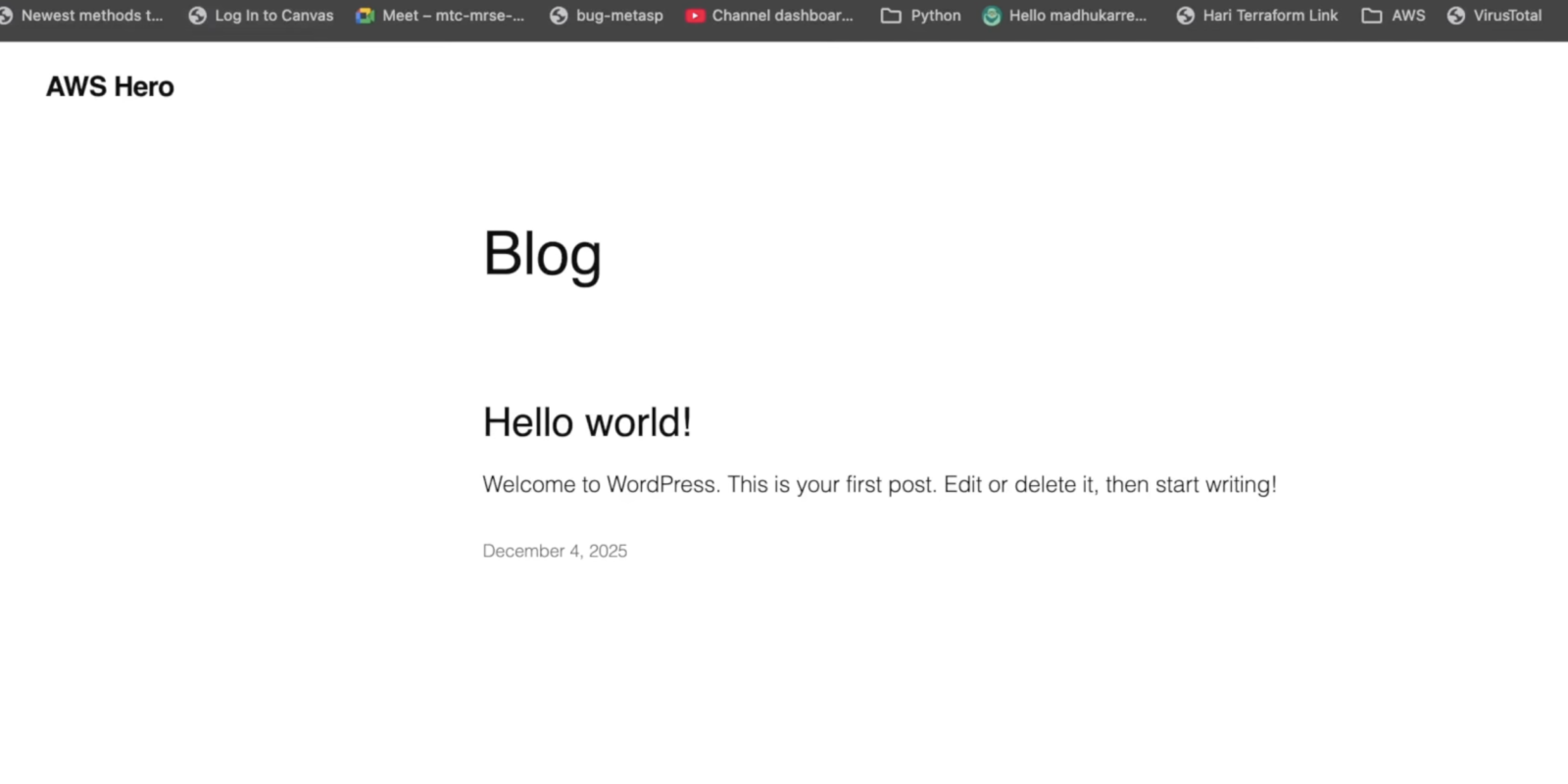
When most people deploy WordPress for the first time, they usually install everything on a single server.
That works for learning, but real-world production environments are designed differently.
In this guide, I’ll walk through a more practical AWS architecture using:
- EC2 for the web server
- RDS for the database
- Application Load Balancer (ALB)
- Route 53 for DNS
- SSL using AWS Certificate Manager (ACM)
This setup introduces several important cloud and DevOps concepts while keeping the deployment beginner-friendly.
What We’re Building
By the end of this setup, you’ll have:
- A WordPress application running on AWS
- HTTPS enabled with SSL
- Traffic routed through an Application Load Balancer
- Database securely isolated in private subnets
- Domain connected using Route 53
This architecture is much closer to real production deployments compared to a basic single-server setup.
Step 1: Create a Custom VPC
Instead of deploying everything into the default VPC, I created a custom VPC.
This helps you understand:
- Networking
- Isolation
- High availability design
VPC Architecture
The setup includes:
- 2 Public Subnets
- 2 Private Subnets
spread across multiple availability zones.
Why Multiple Availability Zones Matter
Using multiple availability zones improves:
- Availability
- Fault tolerance
- Reliability
If one zone has issues, resources in another zone can continue serving traffic.
Step 2: Launch EC2 Instance
Next, I launched an Amazon Linux EC2 instance inside a public subnet.
This EC2 instance acts as:
- The web server
- The WordPress host
Installing Apache, PHP & WordPress
After connecting to the server, I installed:
- Apache
- PHP
- WordPress packages
Basic example:
sudo yum install httpd php php-mysqlnd -yThen the Apache service was started and enabled.
Step 3: Configure Amazon RDS
Instead of storing the database directly on the EC2 server, I used Amazon RDS with MySQL.
This is a much better production practice because:
- Database becomes managed
- Backups become easier
- Scaling is simpler
Private Subnet Placement
One important architectural decision:
👉 The RDS database was placed inside private subnets.
This prevents direct public internet access to the database.
Only the application server can communicate with it.
That’s an important security concept in AWS.
Step 4: Configure Security Groups
Security Groups act like firewalls in AWS.
Separate security groups were created for:
- EC2
- RDS
- Application Load Balancer
Example Security Flow
| Resource | Allowed Traffic |
|---|---|
| ALB | HTTP/HTTPS from internet |
| EC2 | Traffic only from ALB |
| RDS | Traffic only from EC2 |
This layered approach improves security significantly.
Step 5: Setup Application Load Balancer (ALB)
Instead of exposing EC2 directly to users, an Application Load Balancer was used.
The ALB:
- Receives incoming traffic
- Distributes requests
- Acts as the public entry point
Why ALB is Important
ALBs are commonly used in production because they support:
- HTTPS termination
- Health checks
- Path-based routing
- Scalability
This makes them much more flexible than directly exposing servers.
Step 6: Enable HTTPS Using ACM
To secure the website, I requested a free SSL certificate using AWS Certificate Manager.
After validation:
- The certificate was attached to the ALB
- HTTPS became available
HTTP to HTTPS Redirect
To improve security, the ALB listener was configured to:
Redirect HTTP → HTTPSThis ensures all traffic uses encrypted communication.
Step 7: Configure Route 53
Next, the domain was connected using Amazon Route 53.
DNS records were pointed toward the Application Load Balancer.
Flow:
Domain → Route 53 → ALB → EC2 → RDSUnderstanding this traffic flow is very useful when learning AWS networking.
Step 8: Configure WordPress Database Connection
Inside the WordPress configuration file:
wp-config.phpthe RDS endpoint and database credentials were added.
This connects:
- WordPress application
- MySQL database
Why This Architecture Matters
This setup teaches several important cloud concepts together:
- VPC networking
- Public vs private subnets
- Load balancing
- Managed databases
- SSL/TLS
- DNS management
- Security group design
Instead of learning services separately, you see how they work together in a practical deployment.
Common Beginner Mistakes
Some issues I noticed during setup:
- Incorrect Security Group rules
- RDS placed in public subnet accidentally
- SSL certificate validation problems
- Wrong Route 53 records
- ALB health check failures
These are very common learning-stage mistakes.
Important AWS Cost Reminder
One thing beginners should always remember:
AWS resources continue running until deleted.
This includes:
- EC2
- RDS
- ALB
- Hosted Zones
Always clean up unused resources to avoid unnecessary charges.
Clean-Up Process
After testing:
- Delete EC2 instance
- Delete RDS database
- Delete ALB
- Remove Route 53 hosted zones if unused
This is especially important for learning environments.
Full Practical Video Walkthrough
I also created a complete hands-on walkthrough covering:
- VPC creation
- Public/private subnet setup
- EC2 launch
- RDS configuration
- ALB setup
- Route 53 integration
- SSL setup using ACM
- WordPress installation
- HTTPS redirect configuration
along with practical troubleshooting and deployment flow explanations.
👉 Watch the full walkthrough here:
(Replace with the public YouTube link before publishing if needed.)
Why This Setup is Valuable
This type of architecture is useful for understanding:
- Real AWS deployments
- Cloud networking
- Security best practices
- Scalable web hosting
Even if you later move to containers or Kubernetes, these fundamentals remain important.
Final Thoughts
Deploying WordPress on AWS is not just about hosting a website.
It’s a practical way to learn:
- Networking
- Security
- Load balancing
- SSL
- Infrastructure design
Once you build it yourself, cloud architecture concepts become much easier to understand.
What You Should Do Next
Try building this setup yourself:
- Create a custom VPC
- Launch WordPress on EC2
- Configure RDS
- Add ALB + SSL
- Connect Route 53
Hands-on learning makes a huge difference in cloud and DevOps.
👉 Bonus Tip
Once comfortable with this architecture, try:
- Dockerizing WordPress
- Auto Scaling Groups
- CI/CD deployment pipelines
- Infrastructure as Code using Terraform
That’s where production-grade DevOps workflows begin.
Related Guides
If you’re learning AWS and DevOps, also check:
- AWS S3 + CloudFront Setup
- Route 53 + SSL on EC2
- AWS WAF Explained
- Docker Beginner Guide
- Kubernetes Errors Explained
About the Author
Madhukar Reddy is a DevOps engineer focused on AWS, Docker, Kubernetes, cloud infrastructure, and cyber security. He shares practical cloud and DevOps content based on hands-on learning, real-world deployments, and infrastructure troubleshooting experience.