AWS OpenVPN + VPC Peering Setup | Access Private EC2 Instances Across VPCs Securely
 madhukarreddyeng
5 min read
madhukarreddyeng
5 min read
One of the biggest challenges in AWS networking is securely accessing resources inside private subnets.
In many real-world environments, production servers are intentionally kept private:
- no public IP,
- no direct internet access,
- and restricted inbound traffic.
That’s good for security — but it also means engineers need a secure way to access those systems.
In this guide, I’ll walk through a practical setup using:
- OpenVPN
- AWS VPCs
- VPC Peering
- Private EC2 instances
to securely connect to private infrastructure across different VPCs.
This is a very useful hands-on project if you want to understand real-world cloud networking and secure infrastructure access.
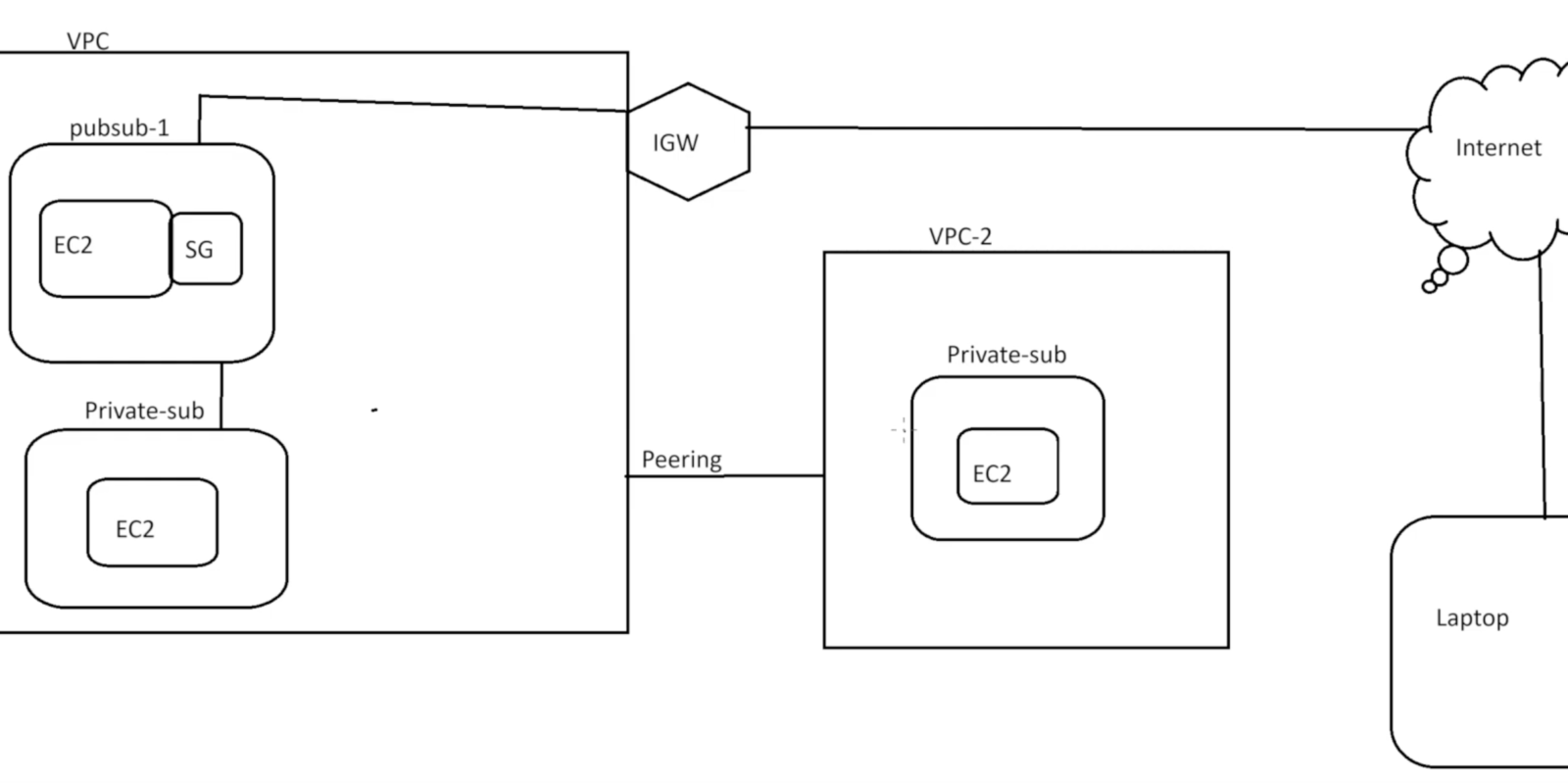
Architecture diagram:
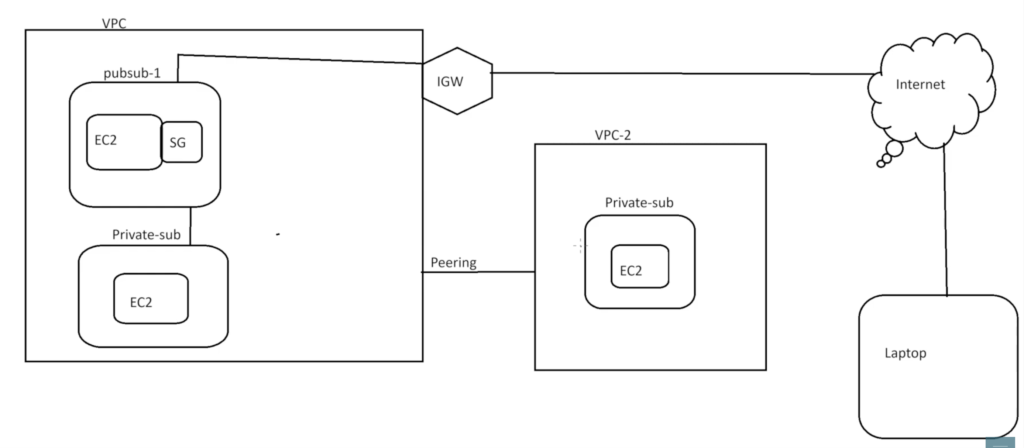
What We’re Building
The architecture includes:
VPN VPC
Contains:
- Public subnet
- OpenVPN server
Production VPC
Contains:
- Private subnet
- Private EC2 server
Goal
After connecting through OpenVPN:
- the local machine should securely access the private EC2 instance
- using its private IP address
without exposing the server publicly to the internet.
Why Private Subnets Matter
In production environments, sensitive servers are usually placed inside private subnets.
This improves security because:
- the server cannot be reached directly from the internet
- inbound exposure is minimized
- attack surface is reduced
This is a very common AWS architecture pattern.
Step 1: Create Two VPCs
For this setup:
- one VPC acts as the VPN network
- the second VPC acts as the production environment
Example:
VPN VPC → 10.0.0.0/16
Production VPC → 192.168.0.0/16
Using different CIDR ranges is important for routing.
Step 2: Launch OpenVPN EC2 Instance
Inside the VPN VPC:
- an Ubuntu EC2 instance was launched
- inside a public subnet
This instance acts as the VPN server.
Elastic IP Configuration
An Elastic IP was attached to the VPN instance.
This provides:
- a stable public IP
- a consistent VPN connection endpoint
Without an Elastic IP, the public IP could change after restart.
Step 3: Configure Security Groups
The VPN server requires specific inbound rules.
Allowed ports:
| Port | Purpose |
|---|---|
| 22 | SSH access |
| 1194 UDP | OpenVPN |
Why UDP 1194?
OpenVPN commonly uses:
UDP 1194because UDP usually performs better for VPN traffic compared to TCP.
Step 4: Launch Private EC2 Server
Inside the Production VPC:
- a second EC2 instance was launched
- inside a private subnet
This server:
- has no public IP
- is only reachable internally
This helps simulate a real production environment.
Step 5: Install OpenVPN
On the Ubuntu VPN server, OpenVPN was installed using an automated installation script.
The setup process included:
- choosing protocol (UDP)
- selecting port 1194
- configuring DNS options
- generating certificates
The script simplified most of the VPN configuration process.
Step 6: Generate Client Profile
After installation:
- a client profile file (
.ovpn) was generated
Example:
madhu.ovpnThis file contains:
- VPN configuration
- certificates
- connection details
It can also be protected with a password for additional security.
Step 7: Connect Using OpenVPN Client
The .ovpn profile was imported into:
- OpenVPN Connect client
After connecting:
- a secure VPN tunnel was established between the local machine and AWS.
At this point, the local machine becomes part of the VPN network.
Step 8: Configure VPC Peering
At this stage:
- VPN connection works,
- but the VPN VPC still cannot communicate with the Production VPC.
This is where VPC Peering becomes important.
What is VPC Peering?
VPC Peering allows private communication between two VPCs using AWS internal networking.
Traffic does not traverse the public internet.
VPC Peering Setup
The process included:
- Create peering connection
- Accept peering request
- Update route tables
This establishes communication between:
- VPN VPC
- Production VPC
Important Routing Concept
Both VPCs need routes pointing to each other.
Example:
VPN VPC Route Table
192.168.0.0/16 → Peering ConnectionProduction VPC Route Table
10.0.0.0/16 → Peering ConnectionWithout proper routing:
- traffic will not flow correctly.
Step 9: Verify Connectivity
After:
- VPN connection
- peering setup
- routing configuration
the local machine successfully:
- pinged the private EC2 instance
- connected through SSH using private IP
Example:
ssh ubuntu@192.168.x.xThis confirmed the setup was working correctly.
Why This Project is Valuable
This setup teaches several important AWS and DevOps concepts together:
- VPC networking
- Public vs private subnets
- VPN architecture
- Security groups
- Route tables
- VPC peering
- Secure infrastructure access
Instead of learning networking theory separately, you see how it works in practice.
Common Beginner Mistakes
Some common issues during this type of setup include:
- overlapping CIDR blocks
- missing route table entries
- blocked Security Group rules
- incorrect OpenVPN configuration
- forgetting UDP 1194 access
Most connectivity issues usually come down to routing or firewall rules.
Important AWS Cost Reminder
One important thing beginners should remember:
AWS resources continue generating charges until cleaned up.
This includes:
- EC2 instances
- Elastic IPs
- NAT Gateways
- VPN servers
After testing:
- terminate unused instances
- release Elastic IPs
- delete unnecessary resources
to avoid unexpected billing.
Full Practical Video Walkthrough
I also created a complete hands-on walkthrough covering:
- VPC setup
- OpenVPN installation
- Security Group configuration
- VPC Peering
- Route table updates
- VPN client setup
- Private EC2 access verification
along with practical troubleshooting explanations and real AWS console demonstrations.
👉 Watch the full walkthrough here:
Real-World Use Cases
This type of setup is commonly used for:
- secure production access
- remote engineering access
- internal infrastructure management
- hybrid networking
- secure administrative connectivity
Understanding these concepts is very useful in cloud and DevOps roles.
Final Thoughts
AWS networking becomes much easier to understand once you build real architectures yourself.
Projects like this teach:
- security,
- routing,
- infrastructure isolation,
- and private communication
far better than theory alone.
Once you troubleshoot these setups hands-on, networking concepts become much clearer.
What You Should Do Next
Try building this setup yourself:
- create two VPCs
- launch OpenVPN
- configure peering
- connect to private EC2
Hands-on networking projects are one of the best ways to improve AWS and DevOps skills.
👉 Bonus Tip
After understanding VPC peering and VPN access, explore:
- Transit Gateway
- Site-to-Site VPN
- Zero Trust networking
- Bastion host architectures
- AWS Client VPN
These are commonly used in larger production environments.
Related Guides
If you’re learning AWS and DevOps, also check:
- AWS WAF Explained
- S3 + CloudFront Setup
- WordPress on AWS with ALB & SSL
- K3s on AWS EC2
- DevOps + Cyber Security Roadmap
About the Author
Madhukar Reddy is a DevOps engineer focused on AWS, Docker, Kubernetes, cloud infrastructure, and cyber security. He shares practical cloud and DevOps content based on hands-on deployments, networking projects, infrastructure troubleshooting, and real-world learning experiences.